D2X-XL - Manual


Introduction

    The first Descent game had been published back in 1995 and at that time was the first computer game offering a true 3D environment you could move in at all 3 spatial axes. Hence it's often referred to as a 6dof (6 degrees of freedom) game. Descent 1 and 2 had been written as DOS based games using a software renderer. While there was a Windows 95 version later on, it never worked all that good with MS Windows. There were a few 3d accelerated versions made available when the first 3d acceleration hardware hit the market, most prominently a 3dfx version using the Glide API, but they could only be run from DOS as well. Descent 3, the last game from this franchise, finally came with - for its time - ultra-modern graphics and ran (and still runs) on both OpenGL and DirectX, while still offering nowadays rather obsolete Glide support, too. For many fans it is however a different game not quite keeping the look and feel of the first two games of the series. Sure, it looks nicer, but a game's priority should be game play.

    The times of DOS are long since gone, and even Windows 95 and its successors are doomed. While you can run the Windows 95 version of Descent 2 on Windows 2000 and Windows XP, it is hardly playable there. Fortunately, a bunch of die hard Descent fans were determined to save this game and created OpenGL versions of both Descent 1 and Descent 2, that can be executed on Linux, Mac OS 8/9/X, and MS Windows. This site is dedicated to D2X-XL, as imo it offers all D1X has, and then some.

    To help old and new D2 fans to get D2X-XL to work and fully exploit its features, I have created this small online manual. While it is partially outdated due to repeated changes to various menus, it will still give you a good overview over the program. You can always press F1 in any menu to have D2X-XL display a description of the currently highlighted menu item and what it does.


Hardware Requirements

    Although D2X-XL's hardware requirements are very moderate, you will not be able to run it on a computer from the times when Descent was a new game. You will need:

    • Graphics card with hardware 3D acceleration (e.g. Geforce 2 MX 400, FX 5200 or Radeon 8500 or 9200)
    • 1 GHz CPU
    • 128 MB RAM
    • 300 MB free harddisk space

Main Menu

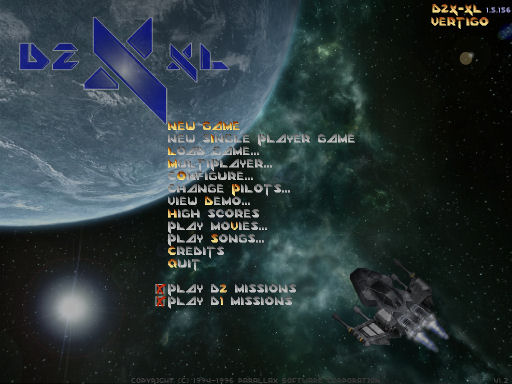
    When launching the game, you will first be asked to chose an existing player profile or create a new one. Such a player profile is stored in a file named <name>.plr in the descent folder (e.g. 'DukeLeto.plr') and contains all settings of that player, i.e. which ship controls are mapped to what keyboard or mouse keys, the screen resolution to use, etc. Once a player is chosen, D2X-XL will display the main screen showing the game title and version and the main menu:

    New GameStart a new single player game.
    New Single Player GameStart a new single player game using only missions explicitly marked as single player.
    Load GameLoad a previously saved single player game.
    MultiplayerStart or join a multiplayer game.
    OptionsConfigure your controls and change the various game options.
    Change PilotsChose another player profile.
    View DemoView a previously recorded in-game demo.
    High ScoresSee the hall of fame.
    Play MoviesChose a game movie for playback.
    Play SongsChose a song from the game for playback.
    CreditsWatch the developer credits.
    QuitLeave the game.
    Play D2 MissionsCheck to display D2 missions in mission list.
    Play D1 MissionsCheck to display D1 missions in mission list.

    Hint: Press an option's highlighted key to immediately execute it.


Options Menu

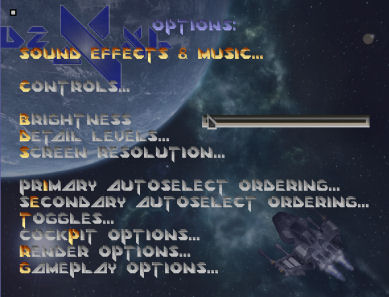
    In the options menu and its sub menus you will find the various game options and control configurations of D2X-XL.

    Sound Effects and MusicEdit the various sound and music options.
    ControlsConfigure your game controls.
    BrightnessAdjust in-game screen brightness.
    Detail LevelsAdjust the amount of details the game will display.
    Screen ResolutionChose a screen resolution.
    Primary Autoselect OrderingChose the priority the game should give to your primary weapons (guns) when switching between them.
    Secondary Autoselect OrderingChose the priority the game should give to your secondary weapons (missiles and mines) when switching between them.
    MiscellanousConfigure game settings of all kinds.
    Render OptionsConfigure game rendering stuff.
    Gameplay OptionsConfigure gameplay-related settings.

Sound Effects and Music

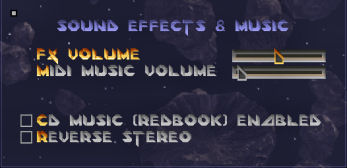
    In the sound effects and music menu you can adjust sound volume and enable or disable music sources.

    FX volumeSet the in-game sounds (explosions etc.) volume.
    Midi music volumeSet the midi music volume. Turning midi sound off turns the complete midi music playback off, so turning it back on will start with the beginning of the song last played and will not resume it.
    CD music (Redbook) enabledPlayback game songs from the game CD.
    Reverse stereoExchange left and right stereo channels.

Controls

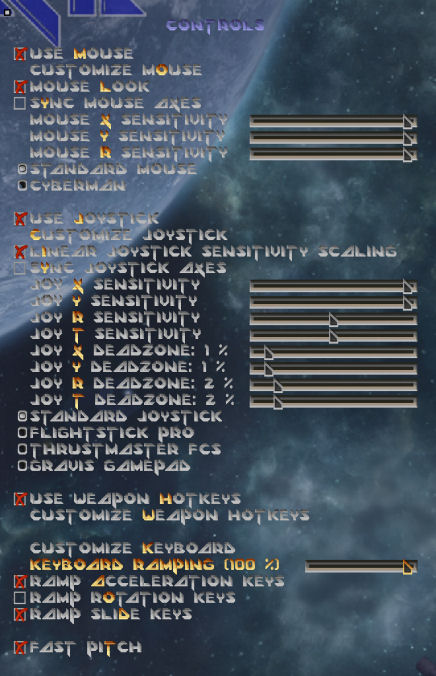
    Configure the game controls here.

    Use MouseEnable control of the ship with a mouse.
    Customize mouseConfigure the game controls operated with the mouse.
    MouselookIf checked, turn speed with the mouse is greatly increased (making the mouse extremely sensitive to movements).
    Sync Mouse axesIf checked, mouse sensitivity is applied to all mouse axes. If unchecked, you can set the mouse sensitivity separately for each mouse axis. The 'R' axis setting affects how much the ship banks when the 'bank on' key is pressed and the ship heading is changed using the mouse.
    Mouse sensitivitySet the sensitivity of the mouse towards movements.
    Use joystickEnable control of the ship with a mouse.
    Customize joystickConfigure the game controls operated with the joystick.
    Linear joystick sensitivityIf checked, joystick sensitivity decreases in a linear fashion with ever notch of the scrollbar. If unchecked, increase gets bigger with every notch (imagine a curve going steeper and steeper up).
    Sync Joystick axesIf checked, joystick sensitivity and deadzone are applied to all available joystick axes. If unchecked, you can set joystick sensitivity and deadzone separately for the first four joystick axes. Further axes' settings will be mapped to to first four axes' settings modulo 4.
    Joystick sensitivitySet the sensitivity of the joystick towards movements.
    Joystick deadzoneSpecify the size of the area in which the joystick does not react to handle movements.
    Note: The maximum reaction is not affected by the deadzone.
    Use Weapon HotkeysEnable changing the weapon using hotkeys.
    Customize Weapon HotkeysSelect to customize weapon shortcut keys.
    Customize keybardMap keyboard keys to game controls.
    Keyboard rampingSet the strength of keyboard ramping.
    Note: Keyboard ramping affects the acceleration speed.
    Ramp acceleration keysDecrease acceleration for forward/backward thrust.
    Ramp rotation keysDecrease acceleration for rotations around the ship axes (pitch/roll/bank).
    Ramp slide keysDecrease sliding (up/down/left/right) acceleration.
    Fast pitchIf checked, max. vertical rotation speed is doubled.

Detail Levels

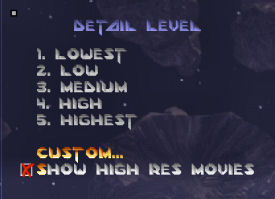
    Configure the view distance and amount of details the game shows when playing here. Note that even on current hardware rather considered 'low end' you can play D2X-XL with the highest detail settings (you might eventually just want to stick with a screen resolution of 640x480).

    Lowest/Low/Medium/High/HighestChose one of the detail settings.
    CustomTailor detail settings specifically to your hardware.
    Show highres moviesMovies will always be shown in high res in D2X-XL.

Custom Details

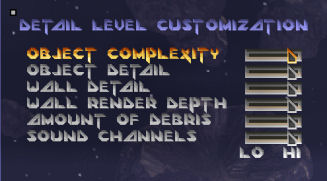
    Tailor the various detail settings to your hardware.

    Object complexityNumber of parts objects (e.g. robots) consist of.
    Object detailAmount of surface details of objects.
    Wall detailAmount of surface details of a mine's walls.
    Wall render depthView distance.
    Amount of debrisAmount of debris exploding objects (e.g. robots) create.
    Sound channelsNumber of sound channels D2X-XL uses.

Screen Modes

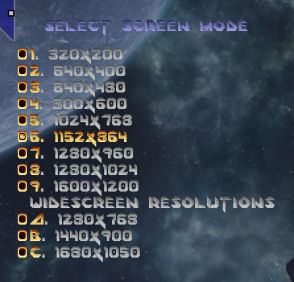
    Chose a screen resolution and screen mode here. The image is a little outdated: All cockpit views are available in all resolutions.

    Resolution X*YSelect the screen resolution given by the chosen options X and Y values.
    Toggling fullscreenYou can toggle between fullscreen and windowed mode anywhere in the program by pressing Alt+Enter.
    Changing screen sizeYou can increase and decrease screen resolution/window size anywhere in the program by pressing Ctrl+F1 or Ctrl+F2.

Miscellaneous

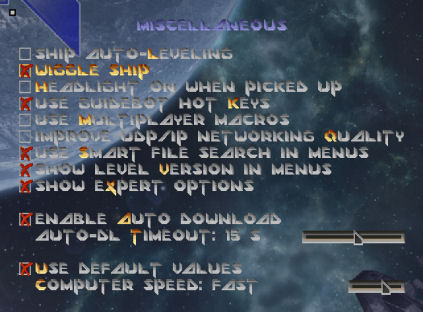
    Well, this menu has become a bit more than that. Actually, you can edit most gameplay relevant settings here - at least those that are not multiplayer specific.

    Ship Auto-levelingIf checked, the ship's bottom will be aligned to the nearest wall to make orientation easier.
    Wiggle ShipGently move player ships up and down when they're idling ('bobbing').
    Headlight on when picked upWell ... turn the headlight on when you pick it up.
    Hint: This should be turned off, as the headlight consumes a lot of energy.
    Use Guide-Bot hotkeysEnable in-game Guide-Bot hotkeys.
    Use multiplayer macrosEnable defining and sending multiplayer messages (taunts) using hotkeys.
    Improve UDP/IP networking qualityIf checked, D2X-XL will determine packet loss in multiplayer and request lost packets to be re-sent. Lost packets older than 3 seconds are dropped as well as packets that are not stored by their sender any more. For convenience, this option is duplicated in the game options menu.
    Use smart file search in menusIf enabled, characters you type in file menus will be stringed together and matched with each filename's beginning.
    Show level version in menusIf checked, D2X-XL will display the level version (Descent 1/2) in square brackets in front of level names in file selector dialogs and the multiplayer game browser.
    Show expert optionsIf checked, D2X-XL will display a whole lot more options in several menus, allowing to tweak the program's behaviour meticulously in many regards. These options require a thorough understanding of the game's workings and should only be changed if the default values do not yield a satisfactory game experience.
    Enable Auto-downloadAllow automatic download of outdated or unknown multiplayer levels.
    Auto-DL timeoutSet timespan after which auto-dl is aborted when the sender/receiver do not respond.
    Use default valuesIf checked, D2X-XL will display a slider allowing to select the computer's speed and set various options that affect performance according to the speed setting the user choses.
    Computer speedSelect your computer's speed here to have D2X-XL set various options that affect performance accordingly.

Render Options

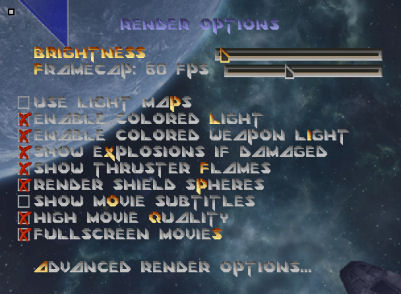
    Adjust various rendering effects in this menu.

    BrightnessAdjust the brightness.
    Frame capSet the max. frame rate.

    Use Lightmaps

    Turn colored lighting by lightmaps on.

    Enable colored light

    Render colored lights in mines if they contain one.
    Note: Levels containing colored lights can be created with DLE-XP.
    Enable colored weapon lightShine colored instead of simply white light from weapon shots at the mine.
    Show explosions if damagedDraw small explosion clouds on ships and robots if their shields drop below 50. The more a ship or robot gets damaged, the more clouds appear.
    Show thruster flamesShow flames coming from your ship's thrusters.
    Render shield spheresRender a transparent sphere around player ships (blue: normal, yellow: invulnerable, orange: hit).
    Show movie subtitlesDisplay subtitles during speech when movies are playing.
    High movie qualityIf checked, extra processing will by applied to each frame of in-game movies to improve their quality. This can however lead to choppy movie and sound playback. If you experience that, uncheck this option to have movies displayed in the standard D2 quality.
    Fullscreen moviesStretch movies over the entire window.
    Advanced render optionsOpen the advanced render options menu.

Advanced Render Options

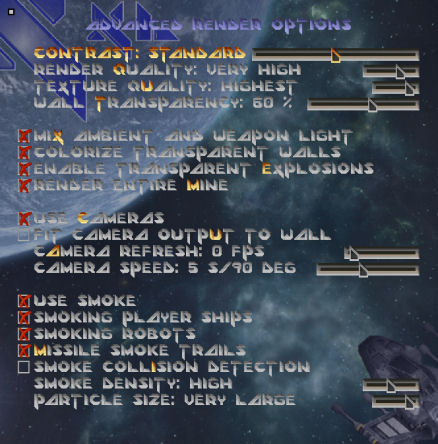
    Adjust various rendering effects in this menu.

    ContrastAdjust the contrast (lower values will brighten dark and darken bright areas, higher values will increase darkness and brightness).
    Only available if lightmaps disabled.
    Render QualityChose a render quality from pixelated to fully filtered and mipmapped.
    Texture QualityChose a texture quality. This option is to allow you to use hires textures even if your available memory is limited. The lower the texture quality, the more hires textures are compressed by D2X-XL.
    Wall TransparencyDegree of transparency of colored transparent walls (a D2X-XL extension).
    Lightmap rangeDetermine how far lights reach when using lightmaps. Bigger reach means more apparent color effects, but also brighter levels.
    Only available if lightmaps enabled.
    Mix ambient and weapon lightIf checked, ambient and weapon light are mixed. This will result in a more natural lighting at the cost of decreased visibility of the weapon light in bright areas. If unchecked, weapon light will replace ambient light.
    Colorize transparent wallsIf checked, colored windows will be displayed with the color the level author gave them. If unchecked, they will more or less darken what's behind them, depending on the wall transparency setting.
    Enable transparent explosionsIf checked, explosions will be rendered partially transparent, depending on the color intensity of the explosion effect areas.
    Render entire mineIf checked, D2X-XL will render every transparent face in the mine, starting with the one farthest away, to make sure transparency is handled correctly.
    Note: This option is meant for levels where some visible faces aren't drawn at certain angles of view. This usually happens in levels that stretch D2's rendering engine beyond its limits. If turned on, this feature will cause a minor performance hit, if at all. Objects will still be rendered depending on the visibility detection result of D2, as rendering all objects in a mine can lead to a massive performance hit and an object not being visible at certain view angles is much less apparent than a face not being rendered.

    Use cameras

    If checked, D2X-XL will display camera views from camera triggers the level author has placed in the mine and on the designated monitor faces.
    Note: Camera views can cause a massive performance hit. In multiplayer games, this feature can be controlled by both the game host and the client. The game host can turn this feature on or off before starting the match. If the game host choses to use camera views, the clients can still turn them off if their frame rate drops too much with them. Generally, camera views will only be produced when the related monitor is visible for the player to improve performance.
    Fit camera output to wallIf checked, D2X-XL will display rectangular area from the source cameras view in the destination monitor. This method causes a moderate performance hit at the cost of losing a part of the complete camera view. The background of this is that D2X-XL uses square textures. If unchecked, D2X-XL will display the entire camera view and resize it so that it fits into the monitor area. This requires additional computational overhead and delivers the full camera view angle at a performance cost.
    Camera refreshSet the max. frame rate of camera trigger controlled in-game monitors. Chose lower values to improve your frame rate (10 is still an acceptable value). Set the frame rate to zero for max. possible monitor frame rate (will very likely drop your game fps pretty heftily).
    Camera speedSet the movement speed of rotating cameras.

    Use smoke

    Generally allow smoke effects to be shown.
    Smoking player shipsShow smoke from ship thrusters and if the ship is damaged.
    Smoking robotsShow smoke from damaged robots.
    Missile smoke trailsShow smoke trails from missiles.
    Smoke collision detectionMake smoke particles bounce off walls. This option costs about 15% of your framerate on a fast computer. While it makes smoke movement more realistic, in most cases you won't notice the effect, so you can safely turn it off if your system has difficulties handling smoke.
    Smoke densitiyThe higher the value, the thicker smoke clouds appear and the more computing power does your machine need to display it.
    Particle sizeSize of the smoke particles. Smaller particles may seem more realistic, but may need a higher smoke density to look good. Impact of particle size on the game performance is negligable.

Cockpit Options

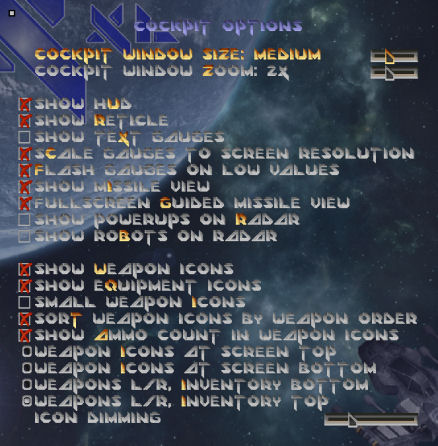
    Adjust the appearance of the cockpit in this menu.

    Cockpit window zoomChose an enlargement factor for the cockpit window views.
    Show HUDDisplay or hide the HUD elements (only fullscreen and widescreen cockpit views; together with the wiggle option from the toggles menu, this switch comes handy for screenshots).
    Show reticleShow or hide the reticle.
    Show graphical gaugesIf checked, shield, energy and afterburner status are displayed as bars instead of numbers.
    Scale gauges to screen resolutionIf checked, the gauge size is adjusted to the screen resolution to make them take up the same percentage of screen space in every resolution. Uncheck to have smaller gauges at higher resolutions.
    Flash gauges on low valuesIf checked, the graphical gauges will start to flash slowly when shields or energy drop below 21, and fast if they drop below 11.
    Warning sound on low shieldsIf checked, a warning sound will be played when the shields drop below 21, and it will get more piercing if shields drop below 11.
    Show powerups on radarShow powerups in the automap and the cockpit window automap view.
    Show Robots on radarShow robots in the automap and the cockpit window automap view.
    Show weapon iconsDisplay weapon icons on the HUD.
    Show equipment iconsAdditionally show icons for the equipment on the HUD.
    Small weapon iconsDisplay small weapon icons (only affects fullscreen cockpit).
    Sort weapon icons by weapon orderSort weapon icons using the primary and secondary weapon order lists (only effective in Descent 2 mission).
    Show ammo count in weapon iconsDisplays the amount of available ammunition per weapon in each weapon's icon. For Gauss and Vulcan, the amount is divided by 1000 and anything below 1000 is divided by 100 and preceded by a dot.
    Weapon icon positionsControl the position of the weapon and equipment icons on the HUD here.
    Icon dimmingChose how much the icons are grayed or dimmed by a transparent color layer.

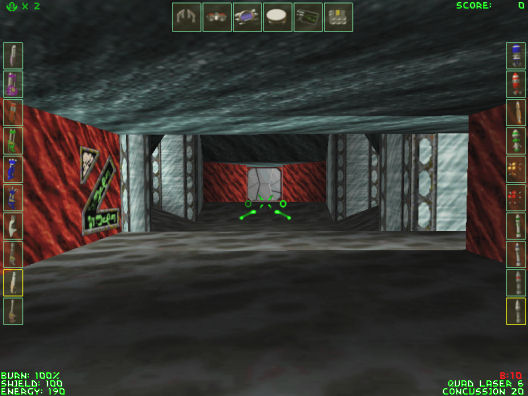
Weapon Icons

    Display status of all weapons and additional equipment.

    A weapon has four attributes:

    • primary/secondary
    • active/inactive
    • loaded/empty
    • available/unavailable

    Depending on the attributes, a weapon slot has different colors:

    • active and loaded
    • active and empty
    • inactive and loaded
    • inactive and empty
    • unavailable

    You can toggle through the various weapon icon positions in-game by pressing Alt+W.

    In multiplayer games, this feature is server controlled, and is not available at all if the game host doesn't use D2X-XL.

    Note that for some cockpits, weapon icon positioning is limited.


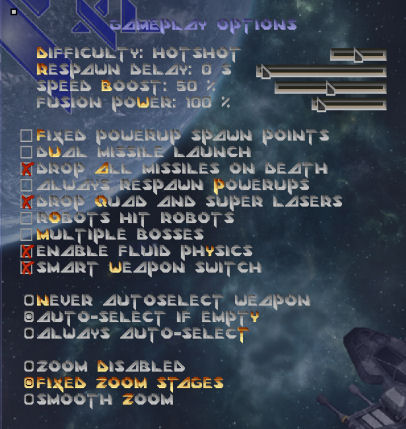
Gameplay Options

    Adjust various gameplay-related settings in this menu.

    DifficultyAdjust single player difficulty level here any time you need to.
    Respawn delaySet a delay for powerups to respawn.
    Speed boostChange the acceleration in speed boost areas with this slider.
    Fusion powerSet the damage the Fusion cannon does here.

    Fixed powerup spawn points

    If checked, powerups picked up in the mine will respawn at the place they had been picked up after having been used. This does not apply to powerups that are scattered when a player or robot explodes.
    Dual missile launchAlways fire two rockets at once if applicable.
    Drop all missiles on deathIf checked, exploding ships will not drop the usual maximum of 10 missiles and 3 smart missiles, megas and shakers in single player and coop games, but all the ship had actually loaded.
    Always respawn powerupsIf checked, missiles that had been picked up in the level during single player or coop games will respawn somewhere in the level when fired and not disappear.
    Robots hit robotsIf checked, robots will damage other robots when they get into their line of fire.
    Note: This option does not cause robots to attack each other.
    Multiple BossesIf checked, levels containing several boss bots will only end after the last boss has been destroyed.
    Enable fluid physicsIf checked, weapons and ships will slow down in water and lava areas, and ships will get damaged while in lava areas.

    Smart Weapon Switch

    If checked, Spreadfire and Vulcan cannon will be overridden with Helix and Gauss if available.
    Never autoselect weaponD2X-XL will never automatically switch weapons.
    Autoselect if emptyD2X-XL will switch to the next weapon in your priority list when the current weapon is empty.
    Always autoselectD2X-XL will always switch to the highest weapon in your priority list.

    Zoom disabled

    No zooming possible.
    Fixed zoom stagesYou can zoom in four stages (press Right-Shift) with the Vulcan or Gauss cannon.
    Smooth zoomSmoothly increase zoom to the maximum (press Right-Shift) with the Vulcan or Gauss cannon.

Multiplayer

    Chose a network protocol for multiplayer games, the level to play and the various game modes and settings here.

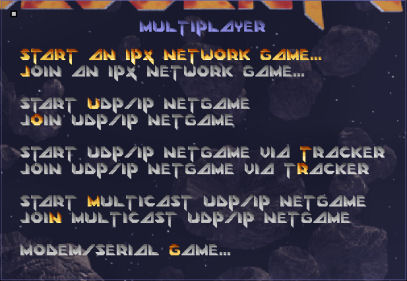
    In the first step, you need to chose a network protocol to use and whether you want to host a game or join a game hosted by somebody else.

    If you host a game, you will be asked to chose a level in the next step. If you are a game client, that step will be skipped.

    If you host a game, you will be offered various game modes and settings in the third step. This step will also be skipped for clients.

    Finally, you will end up in a screen where you can chose a game host to join when you are a client, and where you can chose players to accept to your game if you are a game host.

    Start network gameStart a multiplayer game as the game host.
    Join network gameJoin a network game created by another player.
    IPXIPX is a LAN-only network protocol and is rather obsolete nowadays. Game host and clients will 'broadcast' their message through the entire LAN they're connected to in the hope to find each other. This is a simple and straightforward way to connect host and clients in a LAN. Playing IPX games over the internet is only possible with the help of some specialized software like KALI.
    UPD/IPUDP/IP is a network protocol similar to TCP/IP. It is however 'connectionless', i.e. a sender does not wait for the addressee to acknowledge receipt of its data and does not retransmit data in case of an error. This is the ideal protocol for internet games, where most of the data consists of game states which are rather volatile by their very nature.
    If this protocol is chosen, the game host somehow needs to give his IP address and the port he uses to the clients. The clients will be asked for the game host's IP address and port in a special dialog.
    UPD/IP via trackerThis is the more comfortable alternative to standard UDP/IP connections. If this option is chosen, the game host will automatically register with a tracker (that is a computer sitting somewhere and waiting for such registration applications). The clients will ask the tracker for the IP addresses and ports of game hosts registered there, and will automatically offer these game hosts to be joined.
    There is currently one tracker available which is located in Germany. As it only coordinates internet address exchange between game hosts and clients this does not pose a problem for playing multiplayer games.
    Multicast UDP/IPThis basically works like IPX by broadcasting data through a LAN, doesn't need explicit knowledge of host or client addresses and is suited for multiplayer games in a LAN.

Multiplayer Game Modes

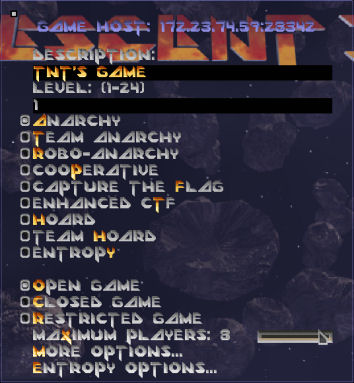
    Chose a game mode and make various adjustments here. Note that the title line contains your current IP address and port for UDP/IP games. If you are using a router or a NAT, this need not be the IP address your computer is communication with the internet though. If you are hosting a UPD/IP game via tracker, the tracker will however have your proper IP address.

    DescriptionEnter a name for your game here.
    LevelIf you had chosen a multi-level mission in the previous step, chose a level from that mission here.
    AnarchyEvery player plays for himself. The player with the most kills wins.
    Team anarchyLike anarchy, but two teams play against each other. The team with the most kills wins.
    Robo-AnarchyAnarchy with additional robots in the level (if the level contains some).
    Cooperative:Play a single player mission together with one or two mates.
    Capture the flagTwo teams have to steal each other team's flag and bring it to their home base. Flags and players will spawn randomly in the level. A team doesn't need to have its own flag in its home base to score. Not a 'real' CTF mode, imho.
    Enhanced CTFLike CTF, but the 'real thing': Players will spawn in team-specific locations. A team can only score when their flag is in its home base. A team can return their flag to its base if it was dropped.
    HoardSimilar to anarchy, but shot-down players leave a green orb floating around that can be picked up. The more orbs a player picks up before entering a hoard goal (green texture), the more points he is awarded.
    Team hoardLike hoard, but two teams play against each other.
    EntropyD2 version of D3's entropy game mode. Read here for details.
    Open gameEverybody can join the game.
    Restricted gameOnce the game is in progress, nobody can join.
    Note: D2 turned all team games into restricted games. As D2X-XL has an auto-balance teams feature, it does not do that.
    Closed gameNo more players can join the game.
    Maximum playersMax. number of players that can join the game.
    Game optionsOpens a menu with more game options.
    Entropy optionsOpens a menu with Entropy options.

Multiplayer Game Options

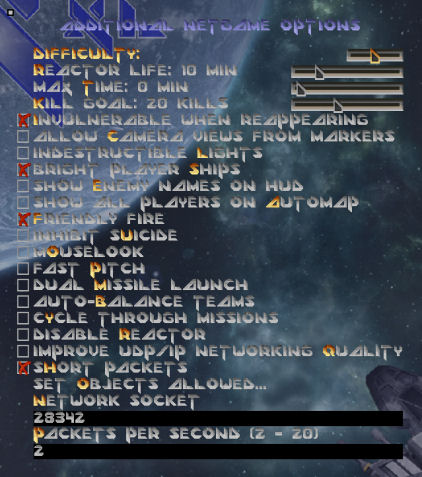
    This menu allows to set various game modifiers.

    DifficultyChose a difficulty level. This affects the amount of shield and energy points you gain when picking up shield orbs or energy sparks.
    Reactor lifeIf the level contains a reactor, it will blow up after the specified time (0: never blow up).
    Max. timeThe match will last for the specified time (0: no time limit).
    Kill goalThe match will end as soon as the first player has reached the kill goal (0: no kill goal).
    Invulnerable when reappearingWhen reappearing, a player is invulnerable for a short period of time to give him a chance to get some weapons.
    Allow camera view from markersIf checked, players can see a view of the area around markers they drop in the cockpit windows.
    Indestructible lightsLights cannot be broken by shots.
    Bright player shipsPlayer ships will always appear brightly lit to make them better visible. This is the recommended setting.
    Note: In D2 this option works the wrong way round. In D2X-XL it works the way the text suggests.
    Show enemy names on HUDIf checked, the pilot names will be printed across the ships in the game.
    Show all players on automapIf checked, all player positions are shown on the automap and the cockpit window automap view.
    Friendly fireIf checked, players can damage their team mates.
    Inhibit suicideIf checked, players cannot damage and destroy their ships.
    MouselookIf checked, turn speed with the mouse is greatly increased (making the mouse extremely sensitive to movements).
    Fast pitchIf checked, max. vertical rotation speed is doubled.
    Dual missile launchIf checked, the game host and all D2X-XL clients will launch two missiles at once when firing missiles.
    Note: Dual missile launch only works where it is appropriate.
    Auto-balance teamsIf checked, new players will automatically be assigned to the smaller/weaker team in team games.
    Short packetsIf checked, D2X will use smaller data packets for network communication.
    Hint: This will result in other players' ships 'jumping'. Disable if all participants use broadband connections.
    Improve UDP/IP networking qualityIf checked, D2X-XL will determine packet loss in multiplayer and request lost packets to be re-sent. Lost packets older than 3 seconds are dropped as well as packets that are not stored by their sender any more. For convenience, this option is duplicated in the toggles menu.
    Set objects allowedSpecify the weapons that are allowed in the match. If the level contains weapons that are not allowed, these weapons will be turned into shield orbs to get rid of them for the time of the match.
    Network socketPort number to use for network communication.
    Packets per Sec.Number of data packets to exchange with each client per second.

In-Game Keys

    Pressing any of the keys listed here will result in the reaction described for that key below.

    -Shrink window.
    =Enlarge window.
    1 - 5Toggle through guns in weapon slots 1 - 5.
    6 - 0Toggle through missiles in weapon slots 6 - 10.
    IDisplay netgame information (multiplayer).
    UDisplay a list of all players (multiplayer).
    PausePause game.
    EscPause/resume game.
    F1Display an in-game help window.
    F2Open options menu.
    F3Toggle cockpit.
    F4Drop marker.
    F5Start/stop demo recording.
    F6Accept player attempting to join (multiplayer).
    F7Toggle player stats display (multiplayer).
    F8Type a message or command (multiplayer).
    F9 - F12Send macro 1 - 4 (multiplayer).
    Shift 0 - 9Issue Guide-Bot command.
    Shift EscOpen console.
    Shift F1Display left HUD window (rear/missile/Guide-Bot/map view).
    Shift F2Display right HUD window (rear/missile/Guide-Bot/map view).
    Shift F3Change HUD window size.
    Shift F4Open Guide-Bot menu.
    Shift F5Drop current primary weapon (gun).
    Shift F6Drop current secondary weapon (missile/bomb).
    Shift F9 - F12Send macro 1 - 4 (multiplayer).
    Ctrl PPause/Resume game.
    Ctrl F1Decrease screen resolution.
    Ctrl F2Increase screen resolution.
    Ctrl F3Change HUD window position.
    Ctrl F7Toggle display of network ping and packet loss stats per player.
    Shift Ctrl F3Change HUD window zoom.
    Alt -Previous song.
    Alt =Next song.
    Alt 0Drop flag.
    Alt 1Accept player attempting to join in red team (multiplayer).
    Alt 2Accept player attempting to join in blue team (multiplayer).
    Alt RToggle framerate display.
    Alt SToggle smart file search in menus.
    Alt WToggle through weapon icon displays.
    Alt F2Save game.
    Alt F3Load savegame.
    Alt F4Show all player names or only those of team mates and flag carriers (multiplayer).
    Alt F9Save screenshot.
    Alt F12Toggle external ship view.
    Alt Shift F4Change Guide-Bot name.
    Alt Ctrl TSwitch team (multiplayer).
    Shift Ctrl Numpad-/
    Alt Ctrl Numpad-/
    Alt Shift Numpad-/

    Open render options menu.
    Alt EnterToggle fullscreen.
    Alt Ctrl EnterInstantaneously terminate program.

    In-Game Commands

      Press F8 in-game to enter one of the following commands.

      Handicap:<shields>set starting shields of local player to <shields>.
      Ping:<player name>ping player <player name>.
      !NamesDon't report player name to other players.
      NoBombsturn off smart mines.
      move:<player name>move player <player name> to the other team (game host only).
      kick: <player name> / #<player number>kick player <player name> (game host only).
      ban: <player name> / #<player number>kick & ban player <player name> (game host only). Player name will be added to ban list ('banlist.txt' in Descent 2 main or data folder).

News

A new D2X-XL update fixing broken screen resolution persistence is available

There is yet another D2X-XL update is available (the new Pumo Mines broke a few things ...)

Believe it or not: There's a new D2X-XL version online!

Uploaded updated D2X-XL and library source code that compiles with Visual Studio 19

After a really long time, another new DLE version is available

A new DLE version is available (hear, hear!) :D

A new Max OS X version of D2X-XL is available!

D2X-XL now offers a cartoon style render mode!

New D2X-XL and DLE versions are available

Blarget has got his own area in the level spotlight

New D2X-XL and DLE versions are available

A couple of levels have been added to the level spotlight

Hooray! We're finally having a new Mac OS X version of D2X-XL!

D2X-XL now features an observer mode for multiplayer games

A new D2X-XL version with improved multiplayer synchronization is available

A new D2X-XL version fixing out of sync problems in multiplayer games is available

A new D2X-XL version with many multiplayer bug fixes is available

Added high quality (ogg) Descent 1 and 2 music to the downloads area

A new D2X-XL version with important bug fixes is available

D2X-XL compiles and runs on Linux again!

Descent 1 and 2 high res textures are now available as complete downloads

A new DLE version with a ton of bug fixes and improvements is online

A new D2X-XL version is online

A new D2X-XL version with a much needed bug fix is online

A new DLE version is online

Published another DLE version with more bug fixes and improvements by Sirius

Published a new D2X-XL version

Published a new DLE version with tons of bug fixes and improvements by Sirius

D2X-XL now supports Oculus Rift 3D headsets!

Updated DLE and D2X-XL to support new level features requested by Pumo

Added an article about DLE's new tunnel generator to the worklog

DLE's new tunnel generator is finished

Added a new article to the worklog

Published a new DLE version

Added a new article to the worklog

Added two new articles to the worklog

D2X-XL and DLE-XP now support triangular segment sides!

DLE-XP has an OpenGL render and 1st person view!

New DLE-XP version available

Wrote a new worklog article

Check out DarkFlameWolf's level spotlight section!

New DLE-XP and D2X-XL versions are available

A new DLE-XP version is available

Added a worklog article about the way point feature

Added way point support to DLE-XP and D2X-XL

Posted a bunch of new screenshots

Posted a bunch of new screenshots

A New version of DLE-XP is available

New OS X version of D2X-XL is available!

Added article about lightmaps to worklog.

New article and video added to worklog.